

As Divi users, we're always looking for ways to optimize our websites for both speed and compliance. While Divi gives us access to a vast library of Google Fonts, actively hosting your fonts locally on your server can be a more robust and performant solution for certain situations. This strategy can be a game-changer for freelancers, agencies, and small business owners who prioritize website speed and data privacy.
In this guide, I'll walk you through the reasons why local fonts can be a compelling alternative, the benefits of doing so, the different font file types you'll encounter, and my personal recommendations for the best approach for your Divi site.
Why Consider Hosting Your Fonts Locally?
Before we dive into the nitty-gritty of font performance, it’s crucial to address a foundational point: your web hosting. If you’re on slow, unreliable shared hosting, obsessing over font optimizations will likely be a waste of your time.
Performance
The biggest performance gains always come from having a solid hosting provider. Think of it this way -- no matter how fast your car's engine is, you won't get anywhere quickly if you're stuck in heavy traffic. Once you have a reliable host, these font optimizations become a meaningful part of a well-tuned website.
When you use fonts from an external source like Google Fonts, every time a visitor lands on your page, their browser has to send a request to an external server to download the font files. This adds an extra step and a new connection that the browser has to make. While modern technologies like HTTP/2 and CDNs have made this process incredibly efficient, hosting fonts locally still offers tangible benefits, especially when it comes to control and eliminating connection overhead.
Privacy
This practice also has significant implications for privacy, particularly with regulations like GDPR in Europe. When a user's browser connects to an external server (like Google's) to download a font, it sends the user's IP address. This is considered personal data, and a number of European courts have ruled this action to be a violation of GDPR without explicit user consent. Hosting fonts locally can completely sidestep this privacy concern, helping you maintain compliance and build trust with your users without relying on external consent banners for font loading.
Key Benefits of Hosting Fonts Locally
- Eliminates External Connections: Even with HTTP/2, a request to a third-party domain still requires an extra DNS lookup and a new connection handshake. A locally hosted font is served from the same domain as the rest of your website, which eliminates this overhead and can improve your site's Core Web Vitals.
- Enhanced Reliability: Your site's fonts are no longer dependent on a third-party server being available and fast, reducing a point of failure.
- GDPR Compliance (Simplified): Helps you avoid transmitting user data (like IP addresses) to external font providers, simplifying your efforts to meet privacy standards.
- Better Caching Control: A key modern development is that browsers now partition their caches by domain. This means that a user's browser won't use a Google Font they've already downloaded from another website. By hosting locally, you can set your own long-term caching policies, ensuring returning visitors don’t have to redownload the fonts. See my guide on best caching plugins to use.
- Full Control: You gain complete control over font files, allowing you to serve only the optimized
.woff2and.woffformats and even subset the font to include only the characters you need, which can dramatically reduce file size.
Understanding Font File Types
You'll come across several different font file types, but two are the most important for modern web design.
- WOFF (Web Open Font Format): This is the most widely supported font format for all modern browsers. It's essentially a compressed version of TrueType (
.ttf) and OpenType (.otf) fonts, making it smaller in size and faster to load. - WOFF2: The next-generation version of WOFF. It offers even better compression, resulting in file sizes that are approximately 30% smaller than standard WOFF files. It has excellent support in all major modern browsers, and it's always the preferred file type to use.
While other file types like
.ttfand.otfexist, they are not optimized for the web and generally lead to larger file sizes. I recommend using.woff2and.woffas your primary font files, with.woffserving as a fallback for older browsers that may not support.woff2.
Hosting Fonts Locally in Divi
There are two main ways to host your fonts locally and use them with Divi. The approach you choose depends on your comfort level with custom code and your preference for plugin solutions.
This method involves uploading your font files directly to your server and then accessing the font via the Divi builder to apply it to your website. This approach gives you granular control and doesn't require an extra plugin.

To get started, you'll first need to download your desired fonts. A great place to find high-quality, free fonts is the Google Fonts library. Once you've selected your fonts, you can download the font family files directly from their website. As a general rule, I recommend using a maximum of two font types for your entire website—one for your main headings and another for your body text. This practice keeps your design clean and your site performing at its best.
Next, you'll want to convert your downloaded font files into the correct formats for web use. A fantastic tool for this is Font Squirrel's Webfont Generator, which can take a standard font file and convert it into the necessary .woff and .woff2 formats.

1 Manually
Now that we have the font, let's get started in manually uploading it.
Do Note: To make sure your custom fonts are loaded correctly across your entire website, you'll need to add a little bit of PHP code to your
functions.phpfile. This is a common practice for loading scripts and stylesheets.I highly recommend you do this in a child theme to prevent your code from being overwritten whenever Divi is updated. If you don't already have one, I have a 100% free blank child theme you can download to get started.
Add the Font to your Site
When adding a font to your site, click on the Font Family in your module settings
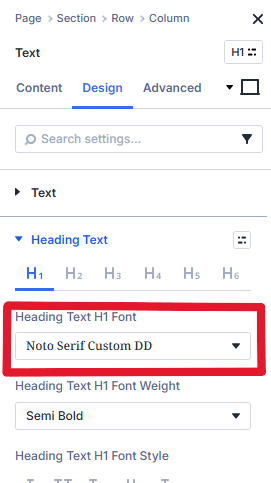
Once you click on that you will need to click on the Upload Button

By default you will see that Divi only allows two font file types: otf and ttf. If you try to upload the woff or woff2 files you will get an error.

In order to overcome this we will need to add the php code I spoke of earlier. Remember to paste it into a child theme and not the main Divi functions.php as it will be overwritten when Divi releases an update.
Copy and Paste the code below into your Functions.php file
/**
 * Global variable for allowed custom MIME types
 */
global $dd_allowed_mimes;
$dd_allowed_mimes = [
    'ttf'  => 'application/x-font-ttf',
    'otf'  => 'application/x-font-otf',
    'woff' => 'application/x-font-woff',
    'woff2' => 'application/x-font-woff2'
];

/**
 * Allow Custom Mime types for font files
 *
 * This function adds the custom font mime types to the global list of
 * allowed upload mime types in WordPress.
 *
 * @param array $mimes The existing array of mime types.
 *
 * @return array The filtered array of mime types with added font types.
 */
if (!function_exists('dd_upload_mimes')):
    function dd_upload_mimes($mimes)
    {
        global $dd_allowed_mimes;
        foreach ($dd_allowed_mimes as $key => $val) {
            $mimes[$key] = $val;
        }

        return $mimes;
    }
endif;


/**
 * Allow Divi To Upload Fonts Format
 *
 * This function specifically adds the font file extensions to Divi's
 * supported font formats list.
 *
 * @return string[] An array of supported font formats.
 */
if (!function_exists('dd_filter_divi_supportedt_font_formats')):
    function dd_filter_divi_supportedt_font_formats()
    {
        return ['otf', 'woff', 'woff2', 'ttf'];
    }

    add_filter('et_pb_supported_font_formats', 'dd_filter_divi_supportedt_font_formats', 999);
endif;

/**
 * Fixes the issue in WordPress being unable to correctly identify type
 *
 * This function checks the file extension of an uploaded file and, if it's
 * empty, it will set the correct extension and MIME type based on the
 * global `$dd_allowed_mimes` array. This is a common fix for certain
 * server configurations.
 *
 * @param array $file     Array of file data.
 * @param string $tmp_file The temporary file path.
 * @param string $filename The original filename.
 * @param array $mimes    Array of mime types.
 *
 * @return array|mixed|null The corrected file array.
 */
if (!function_exists('dd_fix_mime_type_ext')):
    function dd_fix_mime_type_ext($file, $tmp_file, $filename, $mimes)
    {
        // Get File Ext.
        if (isset($file['ext']) && empty($file['ext'])) {
            $file_ext = strtolower(pathinfo($filename, PATHINFO_EXTENSION));
            // Set File Ext.
            global $dd_allowed_mimes;
            foreach ($dd_allowed_mimes as $key => $val) {
                if ($key === $file_ext) {
                    $file['ext'] = $key;
                    $file['type'] = $val;
                }
            }
        }
        return $file;
    }
endif;

// Only apply these filters for administrators to prevent non-admin users
// from uploading potentially harmful files.
if (current_user_can('administrator')) {
    add_filter('upload_mimes', 'dd_upload_mimes');
    add_filter('wp_check_filetype_and_ext', 'dd_fix_mime_type_ext', 75, 4);
}
Now once this has been completed, you can add a font type file. You will see that the upload facility now allows woff and woff2 files too.


You can now proceed to upload your custom font file type by clicking on the choose font files button.
Once it is selected, click the Upload button.
And that should be it! You have just completed your custom font file installation! Well done!
If all went well, you will now be able to access your custom font in the dropdown menu when selecting a font.

2 Using a Plugin
If you are not confident in editing files and working with code then I would recommend you use a plugin to do this for you.
The plugin I would recommend would be Divi Assistant as it is not only very easy to add custom fonts but you get many many (141 at last count) other options that you can use to edit Divi to suit your needs all for one price of $69 per year. If you have more than one site, it will work out even cheaper as you can use it on unlimited sites.
To upload your custom font in Divi
Get the Divi Assistant plugin by going to the Elegant Themes Marketplace.
Install the plugin on your site.
In the Divi Assistant Settings - head to the Fonts Helper Settings and ENABLE the Additional Font File Types Upload.

and that should be it! You can now upload your custom fonts by clicking on the Local Fonts and add it.

My Recommendation
For most Divi users, I recommend a balanced approach that leverages the strengths of both methods, depending on the font's importance and usage. It’s a classic case of "horses for courses."
When to Use Google's CDN
If you are on shared hosting or your website does not need to comply with GDPR or similar data protection regulations, it is often easier and more practical to use Google's servers. With modern technologies like HTTP/2 and CDNs, Google's font delivery is highly optimized and efficient. As a general rule, I still recommend using a maximum of two font types for your entire website—one for your main headings and another for your body text—to avoid too many requests and maintain a clean design.
When to Consider Locally Hosting Fonts
If you are using WordPress managed hosting or a similarly high-performance environment and are serious about squeezing every last bit of performance out of your site, then locally hosting your fonts is an excellent optimization to consider. By doing so, you can eliminate external requests, gain full control over caching, and ensure your fonts are delivered from a single, fast source. This is the ultimate approach for those who want maximum page speed and full privacy compliance.
A Simpler, Faster, and More Compliant Website
Choosing to host your fonts locally is a thoughtful optimization that can significantly benefit your Divi website's performance and privacy compliance. It's not about one method being universally "superior," but about understanding the advantages it offers for specific goals.
For many users on shared hosting or those who don't need to worry about strict privacy regulations, using Google's highly optimized CDN remains a perfectly valid and convenient option. However, for those who are serious about peak performance—especially on managed hosting environments—and want to ensure full GDPR compliance, local hosting is the ultimate strategy. By taking control of your font files, you eliminate external requests, gain granular control over caching, and ensure your site is built on a solid foundation of speed and privacy.
Whether you opt for a simple plugin or use the manual code-based approach, adopting this practice will make your Divi websites more efficient, robust, and privacy-friendly.

